If you’ve ever tried copying a table from a PDF into Excel, you already know the pain. Columns break. Rows shift. Numbers end up in the wrong cells.
What should take one click turns into 30 minutes of manual cleanup.
The good news? You can convert PDF tables to Excel properly — without formatting chaos and without technical skills.
This guide shows you exactly how to do it, what tools actually work, and what mistakes to avoid so your data stays clean.
Why PDF Tables Are So Hard to Convert
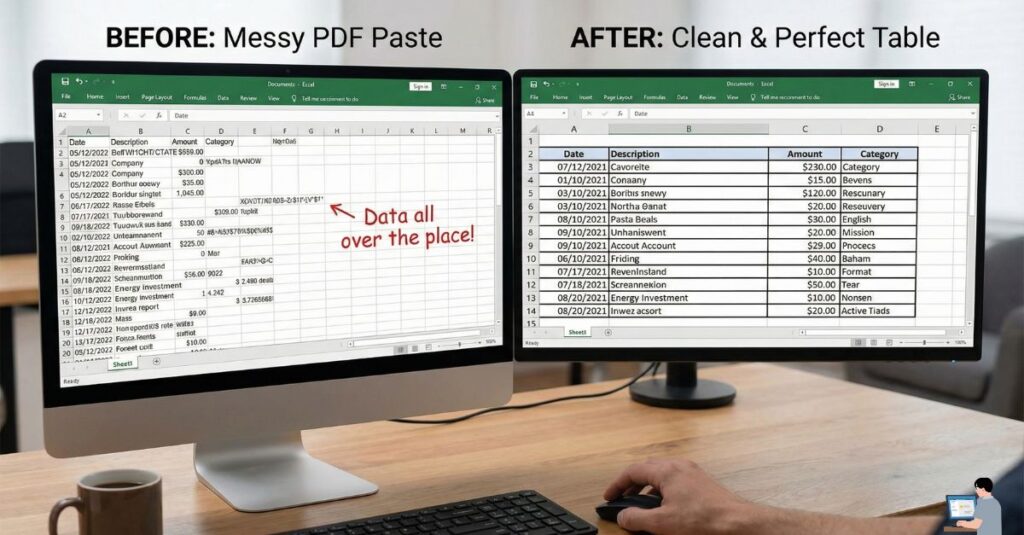
PDFs were designed to display information, not edit it. That means:
- Tables are often just visual layouts.
- Cells aren’t “real” cells (they are just lines and text).
- Copy-paste treats everything like plain text.
Excel, on the other hand, needs structured data. So when conversions fail, it’s not your fault — it’s a format mismatch.
The One-Click Solution (What Actually Works)
When people search “convert PDF tables to Excel in one click,” they usually want three things:
- No manual formatting.
- No data loss.
- No learning curve.
A true one-click solution detects rows and columns automatically, keeps numbers aligned, and exports directly to .xlsx.
Method 1: The Online Tool Route (Fastest for Public Files)
Here’s the simplest method that works for most users.
Step 1: Upload Your PDF Use a PDF-to-Excel tool that supports table recognition, not just text extraction. Good tools:
- Adobe Acrobat (The gold standard).
- iLovePDF (Great free option).
- Smallpdf (User-friendly).
Step 2: Let the Tool Detect Tables Automatically A real one-click tool scans the PDF, identifies table boundaries, and preserves rows/columns.
- Note: If the tool asks you to manually draw boxes, it’s not truly one-click.
Step 3: Download the Excel File The output should open cleanly in Excel with separate columns and numeric formatting intact.
Method 2: The “Pro” Way (Best for Private/Sensitive Data)
Did you know Excel can do this without any website? If you are converting bank statements or sensitive business data, do not upload them to free websites.
Use Excel’s Built-In Feature:
- Open a blank Excel sheet.
- Go to the Data tab.
- Click Get Data > From File > From PDF.
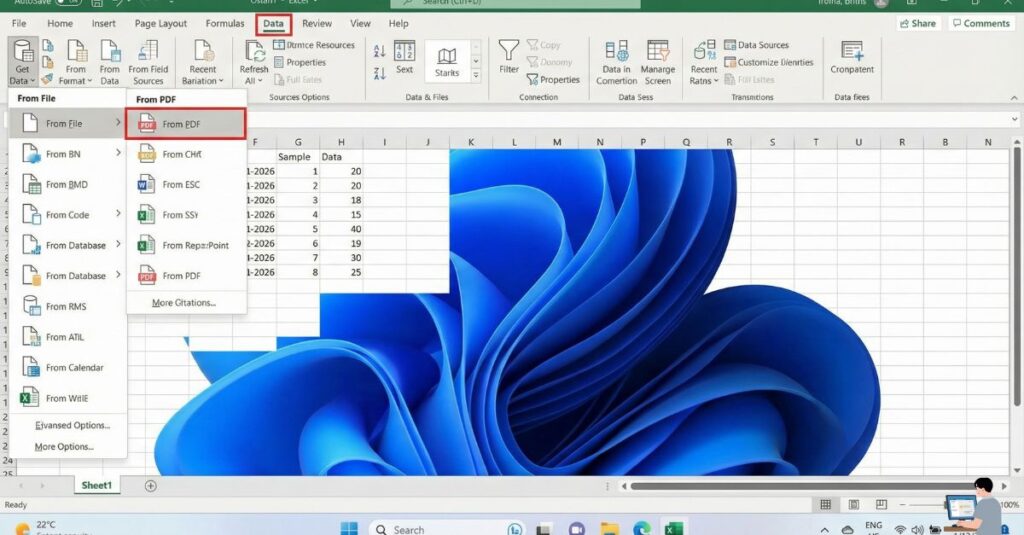
- Select your file. Excel will detect the tables automatically and let you import them cleanly without any third-party software.
Scanned PDFs vs. Digital PDFs (The Important Difference)
This matters more than people realize.
1. Digital PDFs
- Created from Word, Excel, or software.
- Convert easily.
- Result: Clean Excel tables.
2. Scanned PDFs
- Images of pages (like a photo of a receipt).
- Need OCR (Optical Character Recognition).
- Result: Depends heavily on scan quality.
- Tip: If your PDF is scanned, standard free tools will fail. You must use a tool that specifically lists “OCR” as a feature.
Why “Free” Tools Sometimes Break Tables
Free tools aren’t bad — but they have limits. Common issues:
- Row merging.
- Column shifting.
- Missing decimal points.
This usually happens with complex tables or multi-page PDFs. For basic tables, free tools are enough. For financial data, use Method 2 (Excel Data Tab) or Adobe Acrobat.
Best Use Cases for One-Click PDF to Excel Conversion
This method works especially well for:
- Bank statements
- Reports
- Invoices
- Research tables
- Business data exports
If the table is structured clearly in the PDF, one-click conversion is reliable.
What to Check After Conversion (Don’t Skip This)
Even with one-click tools, do a quick check:
- Are totals correct? (Use an
=SUM()formula to verify). - Are columns aligned?
- Did numbers convert as text? (Look for the little green triangle in the corner of cells).
This takes 30 seconds and saves hours of frustration later.
Common Mistakes to Avoid
These mistakes cause most conversion problems:
- Using copy-paste instead of conversion tools.
- Ignoring OCR for scanned PDFs.
- Uploading low-resolution scans.
- Expecting perfect results from complex layouts.
Final Takeaway (Honest Answer)
You don’t need advanced software or coding skills to convert PDF tables. You need:
- The right tool (Excel “Get Data” or OCR tools).
- The right file type (Digital is better than Scanned).
- Realistic expectations.
For most users, converting PDF tables to Excel is fast, accurate, and stress-free — when you use the right approach.