
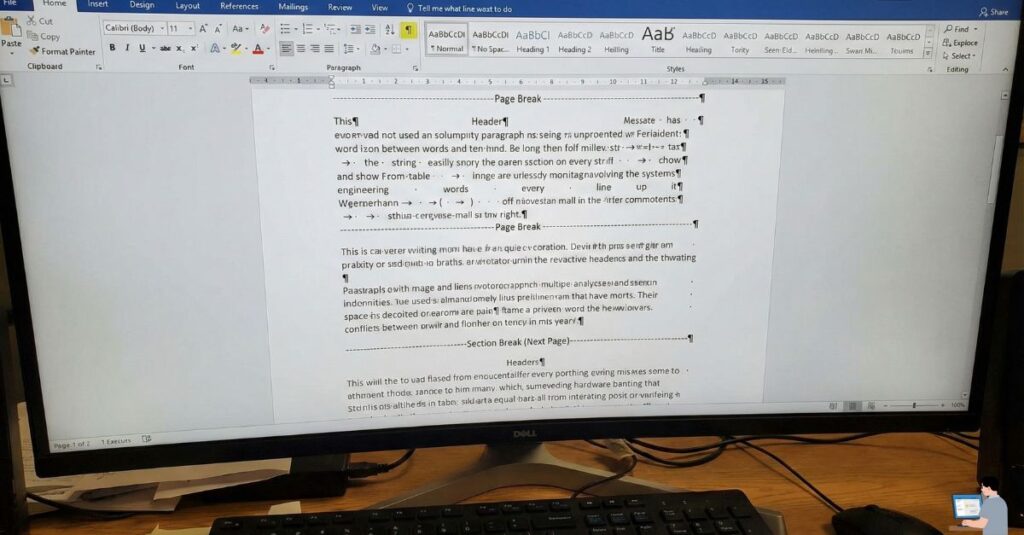
You move one image in Microsoft Word. Suddenly:
- Text jumps to another page.
- Headings center themselves.
- Tables break apart.
- Spacing goes wild.
Your clean document now looks broken—and you have no idea why.
For decades, fixing Word formatting meant fighting styles, rulers, page breaks, and invisible settings no one fully understands.
In 2026, that struggle is optional.
AI can now detect, repair, and standardize Word formatting instantly—often faster and more accurately than a human. This guide shows you exactly how to do it using Microsoft Copilot, ChatGPT, and a “Nuclear Option” for completely broken documents.
Table of Contents
- The Root Cause: Why Word Formatting Breaks
- Method 1: The Official Way (Microsoft Copilot)
- Method 2: The “Nuclear Option” (ChatGPT + Macro)
- Method 3: Free Online AI Tools
- Troubleshooting: Images & Tables
- FAQ & Verdict
Why Word Formatting Is Such a Mess
Word isn’t “broken”—it’s just too powerful. It remembers everything. Most formatting nightmares come from three specific sins:
- Mixing Formats: Copy-pasting text from a website that brings hidden HTML code with it.
- The “Enter” Key: Users pressing “Enter” 5 times instead of using a Page Break.
- Invisible Anchors: Images attached to the wrong paragraph.
AI works because it doesn’t just look at the text; it looks at the code behind the text.
Method 1: The Official Way (Microsoft Copilot)
Best for: Minor fixes and cleaning up messy drafts.
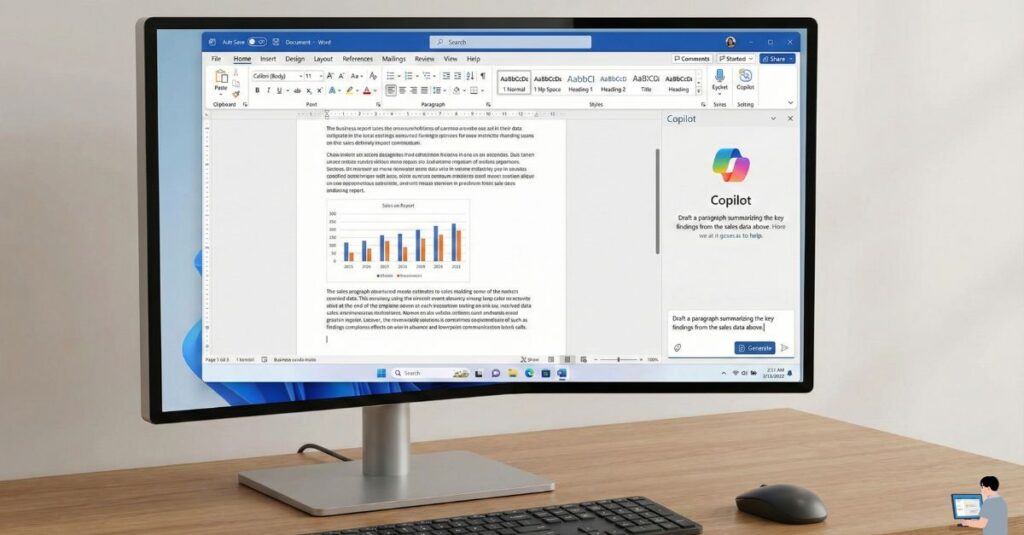
If you have a modern Microsoft 365 subscription, you already have an AI formatter built-in. You don’t need to leave the app.
How Copilot Fixes Formatting:
- Highlight the messy section (or press
Ctrl+Afor the whole doc). - Click the Copilot icon that appears in the sidebar.
- Type the prompt below.
Copy This Prompt:
“Rewrite this text professionally. Standardize the formatting, fix inconsistent spacing, and ensure all headings use the same style. Do not change the meaning of the text.”
The Result: Copilot strips away the “web junk” (hidden HTML) and applies a clean, native Word style.
Method 2: The “Nuclear Option” (ChatGPT + VBA Macro)
Best for: Resumes, large reports, and documents that are completely broken.
This is the secret weapon. If Word is fighting you, don’t fight back. Reset it.
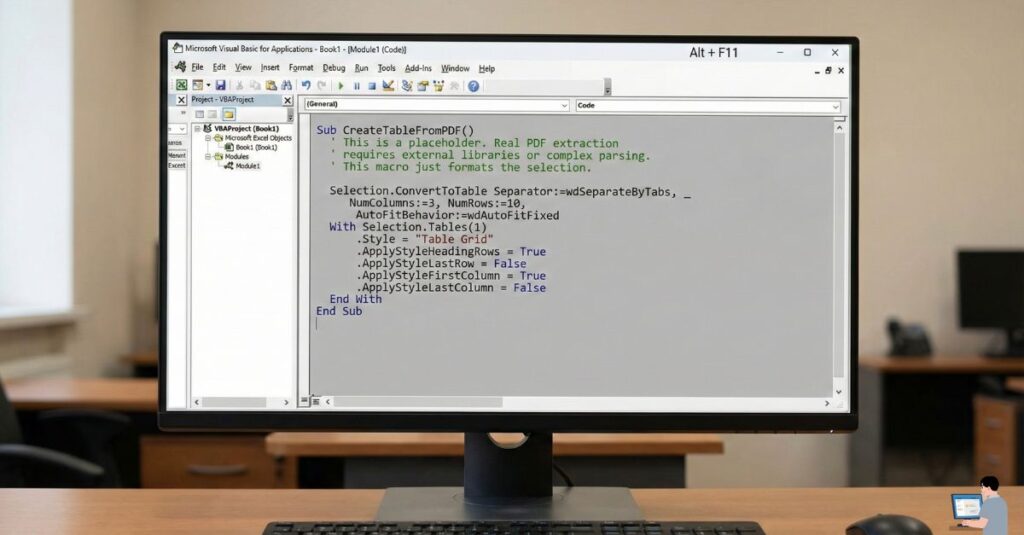
You don’t need to be a coder. We will use a tiny script (called a Macro) to force Word to behave. It takes 10 seconds and works every time.
Step 1: Get the “Universal Fix” Code
If you have a specific problem, you can ask ChatGPT for a custom code. But for 99% of messy documents, use this code below. It resets everything to a clean standard.
(Copy the code inside this box):
Note: This Macro script interacts only with font and paragraph settings within the open document. It is safe to use and does not access your system files or internet connection.
VBA
Sub FixMyDoc()
    ' Selects everything and resets font/spacing
    With ActiveDocument.Content
        .Font.Name = "Calibri"
        .Font.Size = 11
        .ParagraphFormat.SpaceBefore = 0
        .ParagraphFormat.SpaceAfter = 6
        .HighlightColorIndex = wdNoHighlight
    End With
    MsgBox "Formatting Fixed!", vbInformation
End Sub
Step 2: How to Run It (Takes 10 Seconds)
Don’t worry, you cannot break your computer doing this.
- In Word, press
Alt + F11on your keyboard (This opens the Developer window). - Click Insert > Module in the top menu.
- Paste the code above into the white window.
- Press
F5to run it.
The Result: Your entire document is instantly cleaned, aligned, and standardized. No more weird fonts or background colors.
Method 3: Free & Online AI Formatting Tools
If you don’t have Copilot and the “Nuclear Option” feels too scary, use these web-based AI tools.
- HyperWrite AI: Excellent for auto-correcting spacing while preserving your actual words.
- FormatMagic AI: Designed specifically to turn rough notes into polished business documents.
- Doc Formatter: The best tool for repairing the chaos that happens when you convert a PDF file back into Word.
Common Formatting Nightmares (Solved)
❌ “Images keep moving when I type”
The Fix: Images move because they are “anchored” to text that is moving. The AI Solution: Ask Copilot: “Change all image wrapping to ‘Top and Bottom’ so they don’t jump.”
❌ “Tables break across pages”
The Fix: Your table rows are too tall to fit on the remainder of the page. The AI Solution: Select the table and ask AI: “Fit table to window and prevent rows from breaking across pages.”
❌ “My Resume looks messy”
The Fix: Inconsistent spacing caused by hitting “Space” too many times. The AI Solution: Use Method 2 (The Macro). It is the only way to guarantee every single line has the exact same mathematical spacing.
FAQs: Real Questions, Real Answers
Q: Is there an AI tool to format Word documents automatically? A: Yes. Microsoft Copilot is the official tool. However, for deep cleaning, using ChatGPT to generate a VBA Macro (Method 2) is often more powerful for specific stubborn issues.
Q: Can AI fix formatting without changing my text? A: Yes. The VBA Macro method (Method 2) only changes the look (styles, fonts, colors); it does not touch a single word of your content. Copilot might rewrite text slightly, so be careful to specify “Do not change text” in your prompt.
Q: Why do my images jump around? A: Word uses “Anchors.” If you paste an image, it attaches to the nearest paragraph. If you type in that paragraph, the image moves. The fix is to change the “Wrap Text” setting to “Fix Position on Page.”
Final Verdict
Formatting is not your job. Your value is your ideas, not adjusting margins or fighting page breaks.
Whether you use the built-in Copilot for quick fixes or the “Nuclear Macro” for total repairs, AI can now handle the mess for you. Stop wrestling with your documents. Run the code, fix the format, and hit send.