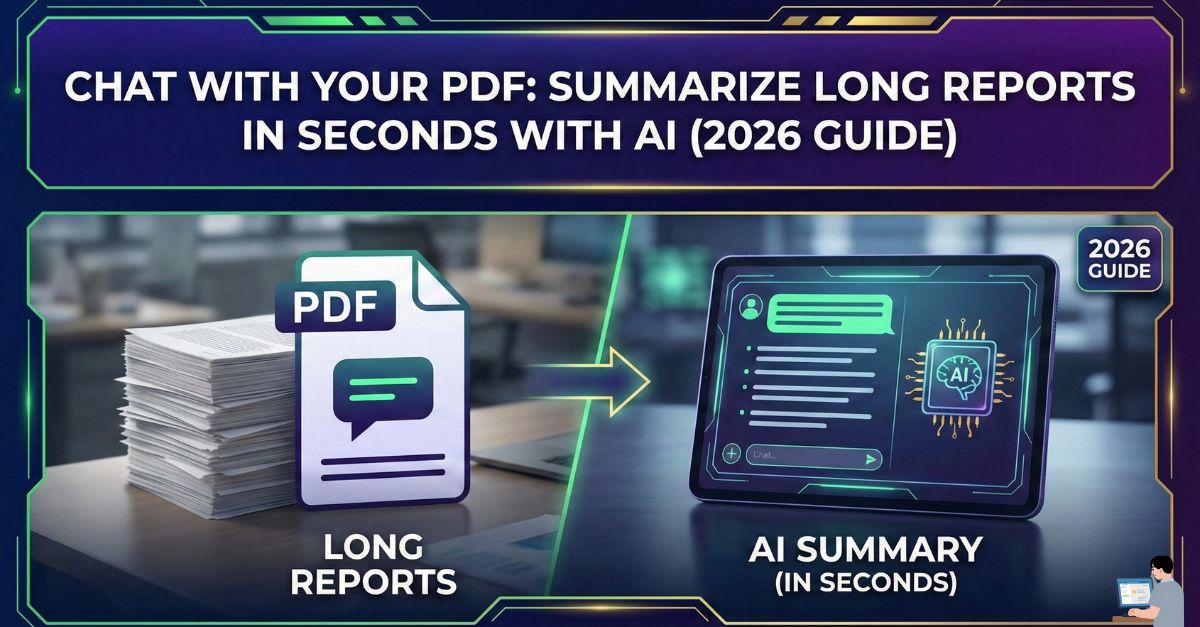
We have all been there.
It’s 4:00 PM. Your boss (or professor) drops a 100-page PDF report on your desk and says, “Read this and give me the key points by 5:00 PM.”
In the past, you would panic. You would skim-read, drink three coffees, and pray you didn’t miss anything important.
But in 2026, reading linearly is optional.
Thanks to “Chat with PDF” technology, you can now upload a massive document and have a conversation with it. It’s like having an expert who has memorized every word of the file sitting next to you, ready to answer any question.
In this guide, I will show you the exact workflow to turn a dense, boring report into a clear executive summary in under 60 seconds.
Table of Contents
Why “Chatting” is Better Than Reading
Traditional skimming is dangerous—you might miss a critical detail buried on page 42.
AI tools use Semantic Search. When you ask a question, the AI scans the entire document instantly, finds the exact paragraph relevant to your query, and synthesizes an answer. It doesn’t get tired, and it doesn’t skip pages.
Whether you need to summarize financial data, research papers, or legal contracts, the process is the same.
Step 1: Choose the Right Tool (Size Matters)
Not all AI tools can handle a 100-page beast. Here is the breakdown based on your needs:
| Tool | Best For | Cost |
| Claude.ai | Massive Documents. It has a huge “context window” (can read 200+ pages at once). | Free / Paid |
| Google NotebookLM | Study & Podcasts. It turns your PDF into a “Audio Podcast” you can listen to. | Free |
| Edge Copilot | Convenience. Built directly into the browser. No upload needed. | Free |
| ChatPDF.com | Citations. Best for pointing out exactly where the answer came from. | Freemium |

Step 2: The “Executive Prompt” (Don’t Just Say “Summarize”)
Don’t just upload the file and say “Summarize this.” You will get a generic, boring result.
You need to use “The Executive Prompt” to extract high-quality data.
Copy This Prompt:
“Act as a Senior Analyst. Read this document.
1. List the Top 5 Key Findings or strategic decisions made.
2. Identify any specific Risks, Costs, or Deadlines mentioned.
3. For every point, CITE THE PAGE NUMBER so I can verify it.”
Why this works: Asking for “Risks” and “Page Numbers” forces the AI to look for specific, high-value details rather than just fluff.
Step 3: The “Interrogation” & Hallucination Check
Now, treat the PDF like a witness in a courtroom. Drill down into the details.
Ask specific questions:
- “What does the report say specifically about the marketing budget?”
- “Are there any contradictions between the executive summary and the data tables?”
- “Explain the methodology used on page 30 in simple terms.”
⚠️ The “Hallucination Check” (Crucial)
Warning: AI can sometimes lie (“hallucinate”). It might invent a fact that sounds plausible but isn’t real.
The Fix: Never trust a number or a quote unless the AI gives you the Page Citation.
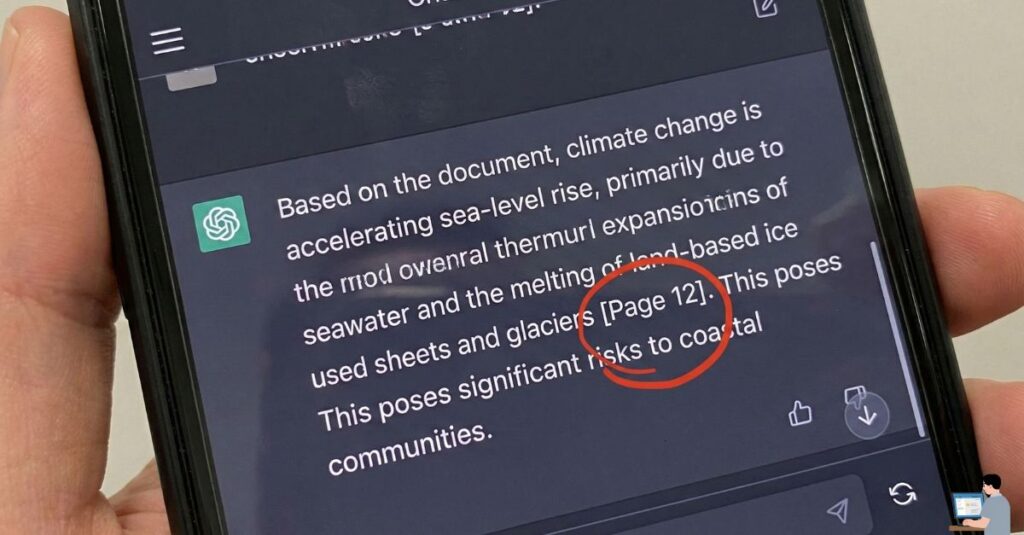
- Always ask: “Where is this in the document?”
- If the AI cannot point to the specific paragraph, do not include that fact in your report.
Pro Tip: Turn Reports into “Podcasts” (Google NotebookLM)
This is the newest AI superpower for 2026.
If you are an auditory learner, you don’t even have to read the summary. You can use Google NotebookLM to turn the PDF into a surprisingly realistic radio show.
The Workflow:
- Go to NotebookLM.google.com.
- Upload your PDF.
- Click “Generate Audio Overview.”
- Two AI hosts will literally “discuss” the main points of your PDF for 10 minutes. You can listen to it while you drive or workout.
Video Insight: Google NotebookLM Tutorial
Google NotebookLM is currently the most powerful free tool for chatting with documents. Watch this tutorial to see how the “Audio Podcast” feature works:
(Video Title: Google NotebookLM: The Ultimate AI Research Tool)
FAQ: Real User Queries Answered
Q: Is there a free AI summarizer with no limit?
A: “No limit” is rare because computing costs money. However, Claude.ai (Free Tier) has a very high limit (approx. 70-100 pages), and Google NotebookLM currently allows massive sources for free.
Q: Can AI summarize scanned PDFs (Images)?
A: Yes, but you need a tool with OCR (Optical Character Recognition).
- Free Option: Microsoft Edge Copilot does a decent job at reading text inside images.
- Pro Option: GPT-4 Vision or Claude can read scanned receipts and handwritten notes very well.
Q: Can I summarize a website link instead of a PDF?
A: Yes. Use Microsoft Copilot or Perplexity. Paste the URL and ask: “Read this link and list the 3 main arguments.” You do not need to convert the website to a PDF first.
Final Verdict: Work Smarter, Not Harder
Your value as an employee isn’t how fast you can read; it’s how fast you can understand.
By using AI to handle the “grunt work” of reading 100 pages, you free up your brain to do the actual thinking—analyzing the strategy and making decisions.
Tools to Try Today:
- Claude.ai (Best for deep analysis)
- Google NotebookLM (Best for audio learners)
- Edge Copilot (Best for quick work tasks)