It is Friday at 4:00 PM. You want to sign off for the weekend.
But you can’t. You have to open Salesforce (or HubSpot/Zoho), export a CSV file, open Excel, clean the data, and copy-paste it into your “Master Tracker” so your boss can see the numbers on Monday.
This “Copy-Paste Ritual” is the silent killer of productivity. It wastes hours, introduces human error, and drives you crazy.
You might think the only solution is paying $50/month for automation tools like Zapier.
Wrong.
In 2026, you can use AI to build your own custom integrations for free. You don’t need to be a coder; you just need to know how to ask ChatGPT the right questions.
In this guide, I will show you how to sync your CRM to Google Sheets automatically using AI, saving you $600/year and countless Friday afternoons.
Table of Contents
Method 1: The “Free” AI Coder (Google Apps Script)
This is the method software companies don’t want you to know.
Google Sheets has a built-in coding language called Apps Script. Usually, you need a developer to write it. Today, ChatGPT is your developer.
Step 1: Get Your API Key
Log into your CRM (HubSpot, Pipedrive, Zoho, etc.) and search for “API Key” in the settings. Copy it to a secure notepad.
Step 2: The “Secure” Prompt
⚠️ SECURITY WARNING: Never paste your actual API Key into ChatGPT. It creates a security risk. Instead, use this prompt to ask for a placeholder.
Copy This Prompt:
“Write a Google Apps Script to fetch data from the [Insert CRM Name, e.g., HubSpot] API.
1. Goal: Pull all ‘New Deals’ created today.
2. Destination: Append them to the active Google Sheet in a tab labeled ‘Deals’.
3. Auth: Create a placeholder variable called ‘API_KEY’ where I can paste my key later.
4. Columns needed: Deal Name, Amount, Close Date, Owner.
5. Trigger: Explain how to set this script to run automatically every hour.”
Step 3: Paste and Run
- Open your Google Sheet.
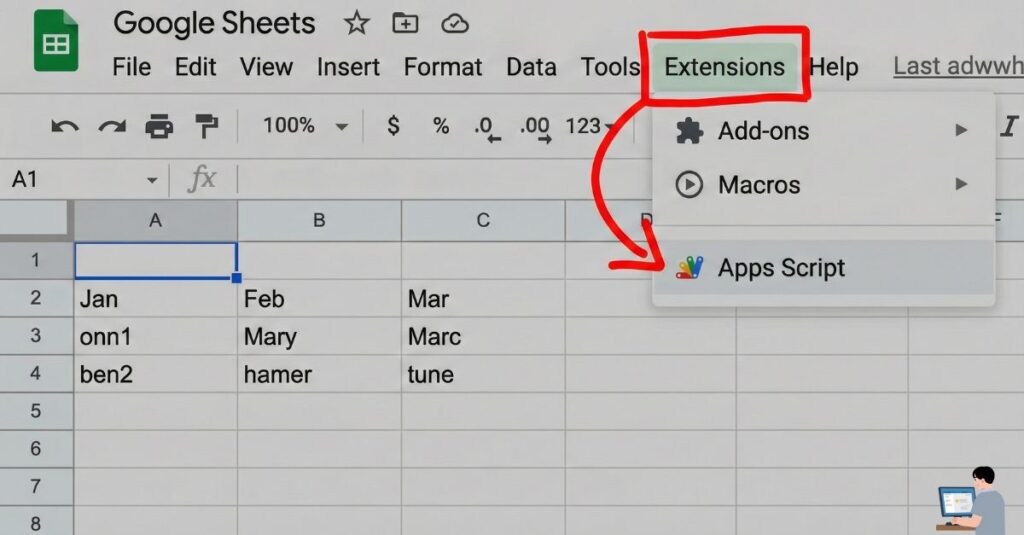
- Click Extensions > Apps Script (in the top menu).
- Delete the existing text and Paste the code ChatGPT gave you.
- Find the line that says
var API_KEY = 'YOUR_KEY_HERE'and paste your actual key inside the quotes. - Click Save (Floppy Disk icon) and Run (Play icon).
Voila. Your data pulls in automatically.
Method 2: The “No-Code” Connectors (Easier, But Paid)
If you are terrified of code (even with AI helping), use a “No-Code” connector. These tools use AI to map the fields for you.
Here is how they compare to the Free Method:
| Tool | Cost | Difficulty | Best For |
| Apps Script (Method 1) | **$0 (Free)** | Medium (Requires AI) | Solopreneurs & Bootstrappers |
| Zapier | High ($30+/mo) | Very Easy | Simple “If This, Then That” tasks |
| Make.com | Low ($10+/mo) | Medium | Complex data workflows |
| Coefficient | Medium | Easy | Sales/RevOps Teams (Sits inside Sheets) |
Method 3: The “AI Analyst” (Cleaning the Mess)
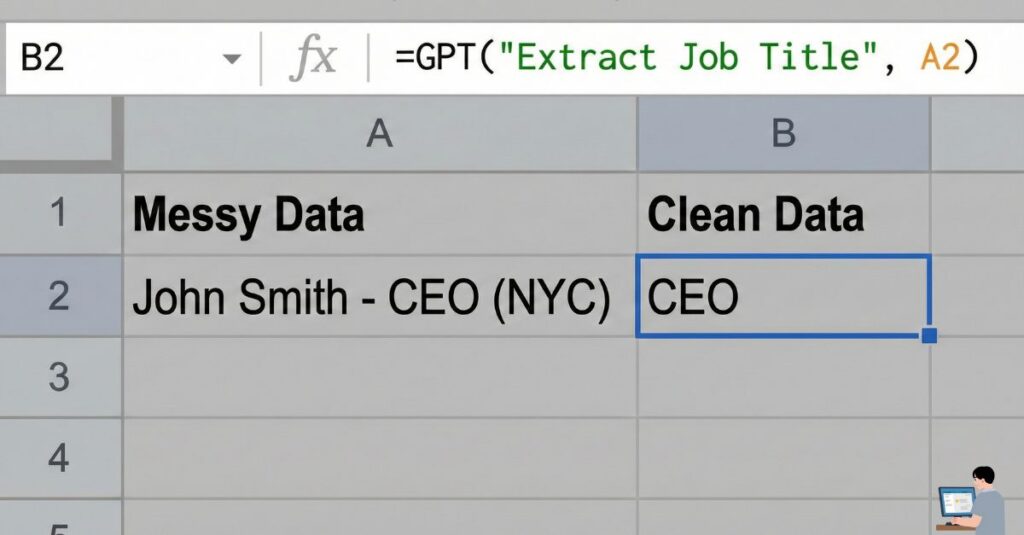
Getting data into the sheet is only half the battle. Usually, CRM data is messy (e.g., “John Doe – Manager” is all in one cell).
Use the “GPT for Sheets” extension to clean it automatically.
- Install: Get the “GPT for Sheets and Docs” extension from the Google Marketplace.
- The Formula: Instead of complex Excel formulas, just type:=GPT(“Extract the Job Title from this cell”, A2)
- The Result: AI automatically pulls “Manager” into the new column.
Pro Tip: The “15-Minute Rule” (Don’t Over-Automate)
As a developer, I see people waste days trying to automate something that takes 5 minutes.
My Rule: If a task takes you less than 15 minutes per week, do it manually. Automation requires maintenance (APIs change, scripts break).
Only build the AI Script (Method 1) if:
- You copy-paste data daily.
- The data volume is high (more than 50 rows).
- Multiple people need to see the data instantly.
For everything else, a simple monthly export is fine. Don’t spend 10 hours automating a 5-minute task.
Video Insight: ChatGPT writing Apps Script
Want to see this “Magic Coding” in action? Watch this tutorial on how to use ChatGPT to write Apps Script code, even if you have zero coding experience.
(Video Title: How to Create Google Apps Scripts using ChatGPT – Step by Step)
FAQ: Real User Queries Answered
Q: Can I sync Excel to Google Sheets automatically?
A: Yes. If your company forces you to use Excel (OneDrive) but you prefer Sheets, use Make.com. Set a trigger: “Watch Excel Online Worksheet” -> “Add Row to Google Sheet.” It works in the background without you opening files.
Q: Is there a free Google Sheet CRM template?
A: Yes. Go to File > New > From Template in Google Sheets and search for “CRM.” Or, ask ChatGPT: “Generate a CSV structure for a Sales CRM with formulas for probability weighting.”
Q: How do I connect Google Sheets to Airtable?
A: Airtable has a built-in “Google Sheets Sync” feature.
- Go to Airtable Base.
- Click Add or Import.
- Select Google Sheets.It will create a synced table that updates automatically whenever the Sheet changes.
Final Verdict: Own Your Data
Your CRM is where data lives. Your Google Sheet is where decisions are made.
By bridging the gap with AI, you stop being a “Data Janitor” and start being a “Data Analyst.”
Action Plan:
- Try Method 1 (ChatGPT Script) first—it’s free and makes you look like a genius to your boss.
- If that fails, use Method 2 (Make.com) for a reliable, low-cost fix.
- Never copy-paste a CSV again.