
You spent 6 hours writing the perfect blog post. You hit “Publish” and wait for the traffic.
Crickets.
The sad reality of 2026 is that people don’t read long-form content like they used to. They scroll. But here is the secret: Your blog post isn’t “dead.” It is just in the wrong format.
Instagram Carousels (those swipeable slide decks) get significantly higher engagement rates than standard photos or reels. Why? Because they force the user to stop scrolling and interact with your content to see the next slide.
Most people think you need to be a graphic designer to make them. They think you need to spend hours in Photoshop aligning text boxes.
You don’t.
In this guide, I will show you how to use AI to turn one blog post into weeks of viral Instagram content in seconds. We will look at the “Lazy Way” (1-click AI) and the “Pro Way” (Bulk Creation).
Table of Contents
What is an Instagram Carousel? (And Why You Need Them)
A carousel is a single Instagram post that contains up to 10 images (or videos) that users swipe through.
If you are wondering about the perfect Instagram carousel size, the golden rule is Portrait (1080 x 1350 px). Do not use squares (1080 x 1080); they take up less space on the phone screen. You want to dominate the screen real estate.
The Benefit: Every time a user swipes, the Instagram algorithm counts it as “engagement.” More swipes = more viral reach.

Method 1: The “Lazy” Way (Predis.ai)
Best For: Turning blog posts into Instagram carousels for free.
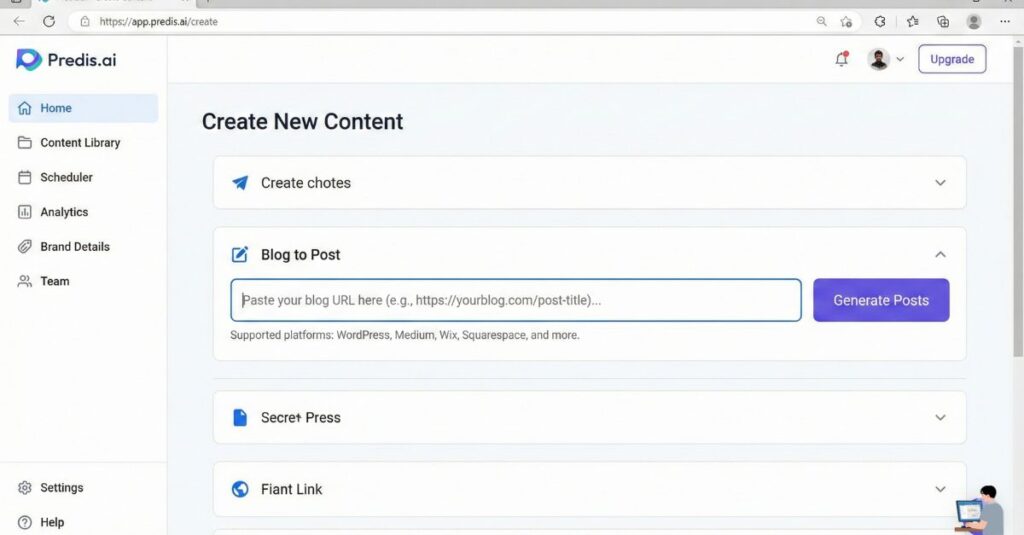
If you want to paste a URL and get a finished design instantly, Predis.ai is currently the best tool for this. It is a dedicated “Text-to-Design” engine that acts as an automated Instagram carousel maker.
The Workflow:
- Sign up for Predis.ai (They have a generous free plan).
- Click on “Content Library” > “Create New”.
- Select “Blog to Post”.
- Paste your Blog URL.
The AI will read your article, pull out the 3-4 most interesting points, and generate a Carousel Design automatically. It even writes the caption and hashtags for you.
- Pros: Zero design skills needed. It picks the images and fonts for you.
- Cons: The free plan has limits (usually ~15 posts/month), and the designs can sometimes look a bit generic compared to custom Canva designs.
Method 2: The “Pro” Way (ChatGPT + Canva Bulk Create)
Best For: Creating “Seamless carousel Instagram” posts in bulk.
This is my favorite method. It gives you professional control and lets you create 50 slides in 5 minutes.
Step 1: The Summary (ChatGPT)
First, we need to extract the “juice” from your article. Open ChatGPT and paste the prompt below.
Copy This Prompt:
“I want to repurpose my blog post into an educational Instagram Carousel.
Read this text: [PASTE BLOG TEXT]
Extract 5 key lessons. Format them into a table with two columns: Column A: ‘Slide Header’ (Short, punchy title, under 5 words) Column B: ‘Slide Body’ (One clear sentence explaining the tip, under 20 words).
Make the tone engaging and viral.”
The Result: ChatGPT will give you a neat table. Copy that table.
Step 2: The Design (Canva)
- Open Canva and search for “Instagram Carousel Template.”
- Choose a template that has a clear “Title” and “Body Text.”
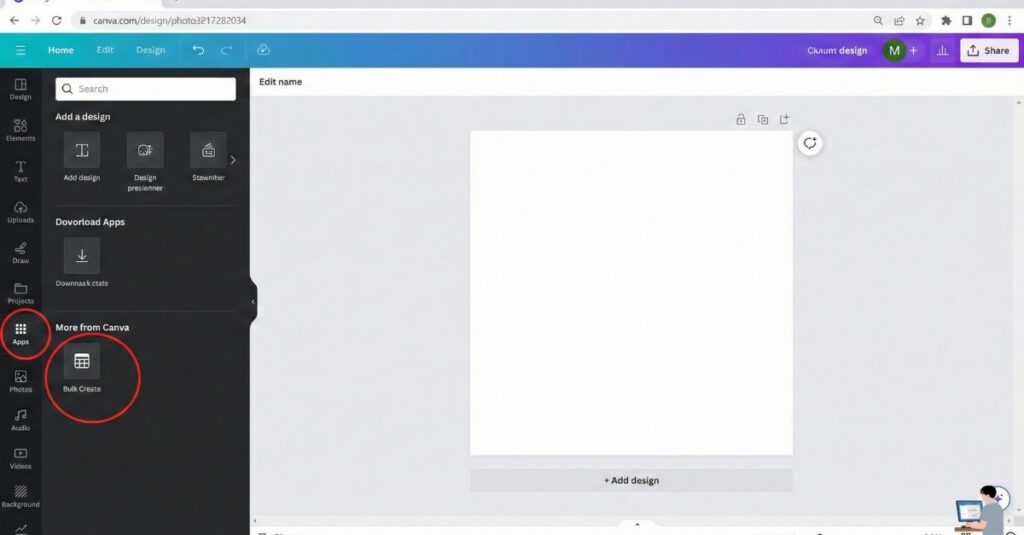
- The Magic Trick: On the left sidebar, scroll down to Apps and search for “Bulk Create.”
- Click “Enter Data Manually” and paste the table you got from ChatGPT.
- Connect Data: Right-click the text on your design > “Connect Data” > Select the column name (e.g., Slide Header).
- Click “Generate.”
Boom. Canva will instantly generate 5 different slides with your exact text plugged in. Download them and post.
Watch the Workflow (Video Tutorial)
The “Bulk Create” button is hidden in Canva. Watch this 2-minute video to see exactly where to click:
Method 3: The “Aesthetic” Way (Contentdrips)
Best For: High-end “IG carousel templates” and seamless designs.
If you want those beautiful, seamless carousels that look like a top influencer made them (where the images flow across the slides), Contentdrips is a specialized tool just for this.
- Killer Feature: It has a “Seamless Maker” that ensures lines and shapes flow perfectly from Slide 1 to Slide 2, encouraging people to keep swiping.
- It also lets you preview exactly how it will look on a phone screen before you download, saving you from formatting errors.
FAQ: Real Questions Answered
Q: How do I add a blog post to Instagram?
A: You cannot post a clickable “link” directly to your feed caption. You must repurpose the content into visuals (using the methods above). Always put the link to your blog in your Bio or use the “Link Sticker” in Stories.
Q: How to make a carousel on Instagram without Canva?
A: You can use Adobe Express (which has similar AI tools) or Figma (if you are a designer). For a non-design option, use Predis.ai or Microsoft Designer, which generates images entirely from text prompts.
Q: How to turn blog posts into Instagram carousels on iOS (iPhone)?
A: Download the ChatGPT app and the Canva app.
- Paste your blog text into the ChatGPT app > ask for “5 bullet points for Instagram.”
- Open the Canva app > Search “Carousel” > Tap the text and paste your points manually. (Note: “Bulk Create” is harder to use on mobile; I recommend Desktop for speed).
Q: What is a “Seamless Carousel”?
A: This is when an image (like an arrow or a photo) gets cut in half at the edge of Slide 1 and continues onto Slide 2. It creates a visual “bridge” that tricks the user’s brain into swiping to see the rest of the image.
Final Verdict
Stop letting your best ideas die on your blog. Your audience wants to hear from you, but they are hanging out on Instagram, not your website.
- Need speed? Use Predis.ai.
- Want control? Use ChatGPT + Canva Bulk Create.
Take the article you wrote today, spend 5 minutes repurposing it, and watch your engagement double.