The old way of creating training videos was a nightmare.
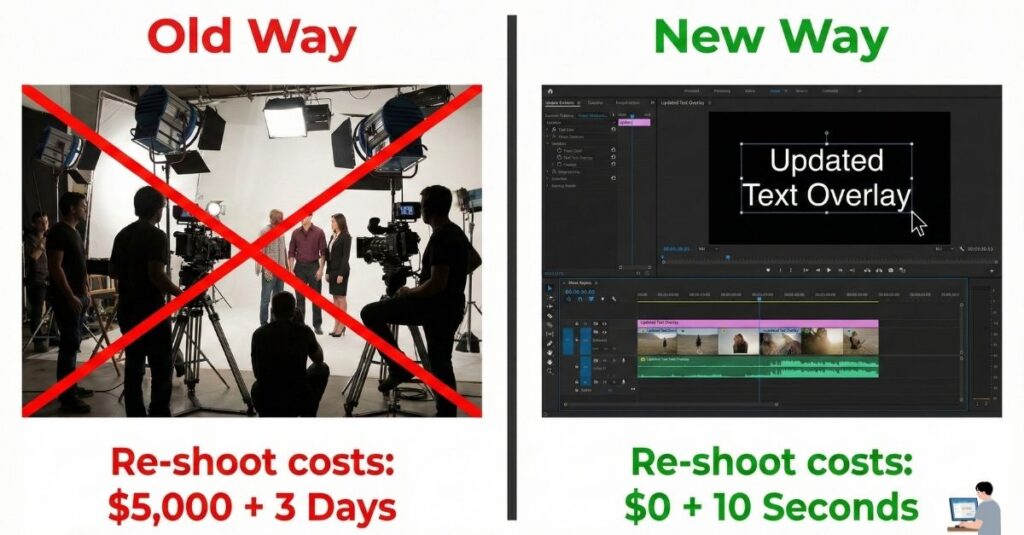
You needed a camera crew, a quiet studio, a microphone, and a confident speaker. If you made a mistake—or if your software interface changed a month later—you had to re-film the entire thing.
The result? Most companies stick to boring 50-page PDF manuals that nobody reads.
Welcome to 2026. You can now clone yourself (or use a professional AI actor) to deliver perfect presentations in 120 languages—without ever turning on a camera.
Whether you are an HR manager onboarding new hires, a course creator selling on Udemy, or a YouTuber making tutorials, this guide will show you the “No-Studio” workflow to build a professional video library in minutes.
Table of Contents
Why “No-Camera” Video is the Future
The biggest advantage of AI video isn’t just that it looks cool—it is Editability.
- In a Traditional Video: If you need to change one sentence (e.g., “Our lunch hour is now 1 PM”), the video is ruined. You have to set up the lights, hire the actor, and film it again.
- In an AI Video: You simply delete the old text, type the new sentence, and click “Regenerate.”
The avatar says the new line perfectly in the same voice. Your content is never “outdated,” saving you thousands of dollars in re-shoots.
Step 1: The Script (Don’t Write It From Scratch)
Don’t waste time staring at a blank page. The secret to speed is using text-to-video AI workflows starting with ChatGPT or Claude.
Copy This Prompt:
“I have a PDF/Article about [Topic, e.g., How to use Excel]. Please convert this into a 2-minute video script.
Tone: Friendly, professional, and clear.
Format: Split it into 3 scenes.
Visuals: Suggest what text/images should appear on screen next to the speaker.”
Once you have the script, you are ready to open the video tools.
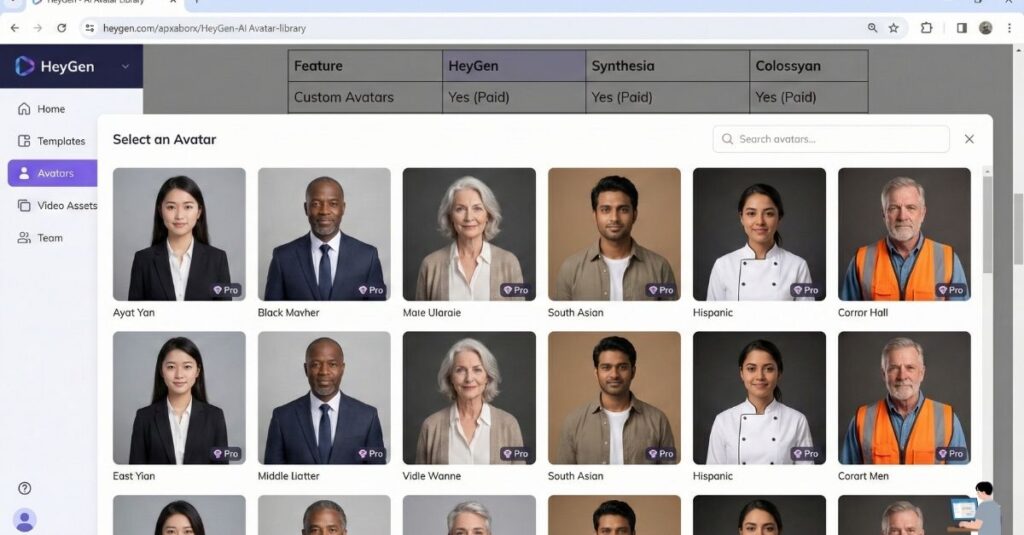
Step 2: Choose Your “Actor” (Best AI Video Generators)
You have two main options here. Both act like “PowerPoint for Video.”
| Feature | Option A: HeyGen | Option B: Synthesia |
| Best For | Realism & Personal Brand | Corporate Training & L&D |
| Avatar Quality | Photo-realistic (Best in class). | Professional “News Anchor” style. |
| Killer Feature | Instant Avatar: Clone your own face and voice from a phone video. | Templates: Massive library of corporate/office slide decks. |
| Voice Options | 120+ Languages, highly emotive. | 130+ Languages, clear & crisp. |
Step 3: Free Tools & “Microsoft” Options
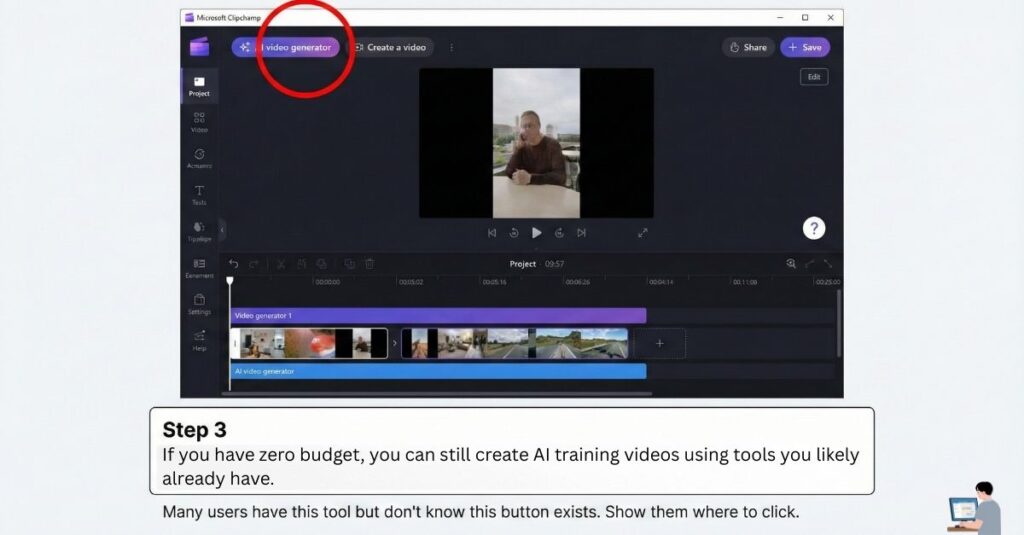
If you have zero budget, you can still create AI training videos using tools you likely already have.
1. Microsoft Clipchamp (AI Edition)
If you have a Windows PC or Microsoft 365, you have access to Clipchamp. Its new “AI Video Generator” feature lets you type a prompt, and it auto-assembles stock footage, music, and voiceovers for free. It doesn’t have the “Talking Heads” of HeyGen, but it is great for b-roll style videos.
2. Kapwing AI
Kapwing is a powerful browser-based editor. Their free plan allows you to generate videos from text prompts. It is excellent for making quick social media training clips (Note: Free version includes a watermark).
3. HeyGen Free Trial
HeyGen offers a generic free trial that lets you generate a 1-minute video. This is perfect for testing the technology to see if it fits your brand before you commit to a subscription.
Step 4: The Assembly Workflow
Here is the exact process to create your video in under 10 minutes:
- Select a Template: Don’t start blank. Choose a “Tutorial” template that has a spot for the avatar in the corner and a large space for your content.
- Paste Your Script: Copy the text from ChatGPT (Step 1) and paste it into the audio block.
- Choose the Voice: Select a voice that fits your audience (e.g., “American – Energetic” for YouTube, or “British – Calm” for Corporate).
- Add Visuals: Drag and drop screenshots, screen recordings, or bullet points onto the slide next to the avatar.
Pro Tip: Keep it short. Make five 2-minute videos rather than one 10-minute video. This makes it easier to update specific sections later without regenerating the whole course.
Watch the Workflow (Video Tutorial)
Seeing is believing. Watch this 4-minute tutorial to see how fast you can turn text into a video using HeyGen:
(Video Title: How to Create AI Videos with HeyGen – Full Tutorial)
FAQ: Real Questions Answered
Q: Can AI make training videos look human?
A: Yes. Modern tools like HeyGen and Synthesia use “Generative Video” technology. The avatars blink, breathe, and lip-sync perfectly. Most viewers cannot tell the difference on a mobile screen.
Q: What is the 10-20-70 rule for AI?
A: This is a famous business rule about implementing AI successfully:
- 10% of success comes from the Algorithms (The AI Tool itself).
- 20% comes from the Technology/Infrastructure (Your data quality).
- 70% comes from Business Process Transformation (Training your people how to use the AI).
- Translation: Buying the tool is easy; changing how your team works is the hard part.
Q: Are there free AI video generators without watermarks?
A: Truly free, high-quality AI video generators without watermarks are rare because computing power is expensive. However, Canva (Magic Design) offers very generous free features for creating video slides, and Clipchamp allows watermark-free exports for basic projects.
Final Verdict: Start Your Library Today
The barrier to entry for high-quality video is gone.
You no longer need to be charismatic or own a $2,000 camera. You just need a script. By using these tools, you can turn your written knowledge into an engaging video library that works for you 24/7.
Tools to Try First:
- HeyGen (Best Avatars)
- Synthesia (Best Templates)
- Clipchamp (Best Free/Microsoft Option)