
Let’s be honest: designing presentations is painful.
You open PowerPoint or Google Slides with good intentions. Two hours later, you’re still adjusting font sizes, aligning images, and staring at a blank white slide wondering why this takes so long.
That’s why “death by PowerPoint” became a thing.
But that era is quietly ending.
I recently tested a free AI presentation maker that created a full, professional slide deck—including layout, images, headings, and formatting—in under 2 minutes. No design skills. No expensive software. No hunting for templates.
And surprisingly… it actually looked good.
If you’ve ever wanted to make professional presentation slides with AI for free, this guide will save you hours of work.
Table of Contents
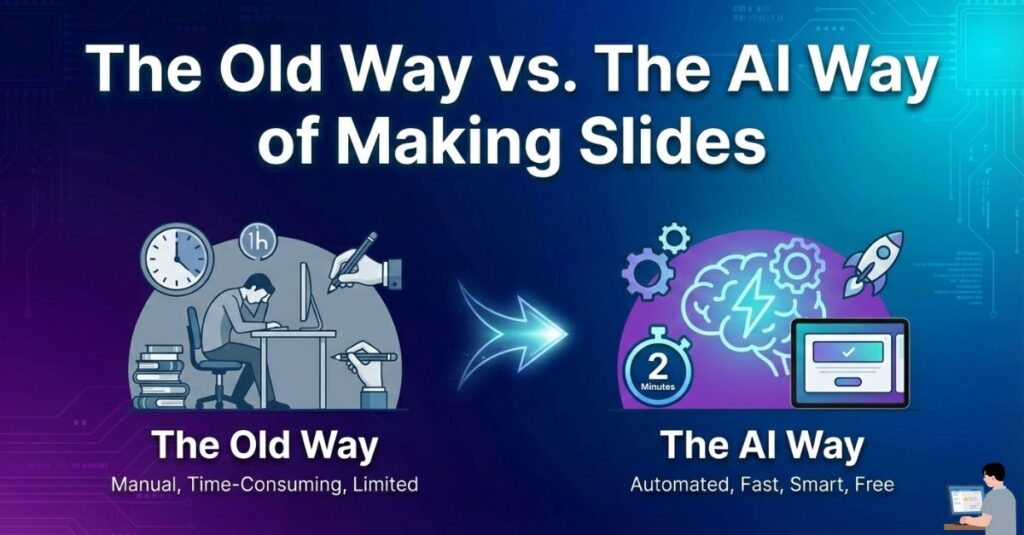
The Old Way vs. The AI Way of Making Slides
Most people think “AI slides” just means asking ChatGPT for text and then manually pasting it into PowerPoint. That is still slow.
The new generation of tools uses generative design—meaning the AI designs the actual slides for you, not just the text.
Here is the real difference in workflow:
| Feature | The Old Way (PowerPoint/Keynote) | The AI Way (Generative Tools) |
| Process | Write outline $\rightarrow$ Pick template $\rightarrow$ Search images $\rightarrow$ Fix formatting | Type topic $\rightarrow$ Click “Generate” $\rightarrow$ Tweak |
| Mental Load | High (Design + Content decisions) | Low (Review & Edit only) |
| Speed | 3–4 Hours | 2 Minutes |
| Skill Needed | Design eye required | No design skills needed |
What Are AI Slides (and Why They Matter)?
AI slides are presentation decks created using artificial intelligence that understands content structure, visual hierarchy, and design balance.
Instead of manually building slides one by one, you simply give the AI:
- A topic
- A short outline
- Or even a Word document
The AI turns that input into a complete presentation instantly. This technology is exploding in popularity among students, freelancers, and office workers because it removes the “blank canvas” paralysis.
The Free AI Tool I Used: Gamma AI
For this test, I used Gamma.app.
There are many tools out there—Canva, SlidesAI, Tome—but Gamma is currently the fastest for structured, information-dense presentations.
Why Gamma stands out:
- Free AI PPT maker (generous freemium model).
- Clean, professional layouts that don’t look childish.
- No design skills required.
- Works fully online (browser-based).
You get enough free credits to create professional slides with AI online without paying a cent upfront.
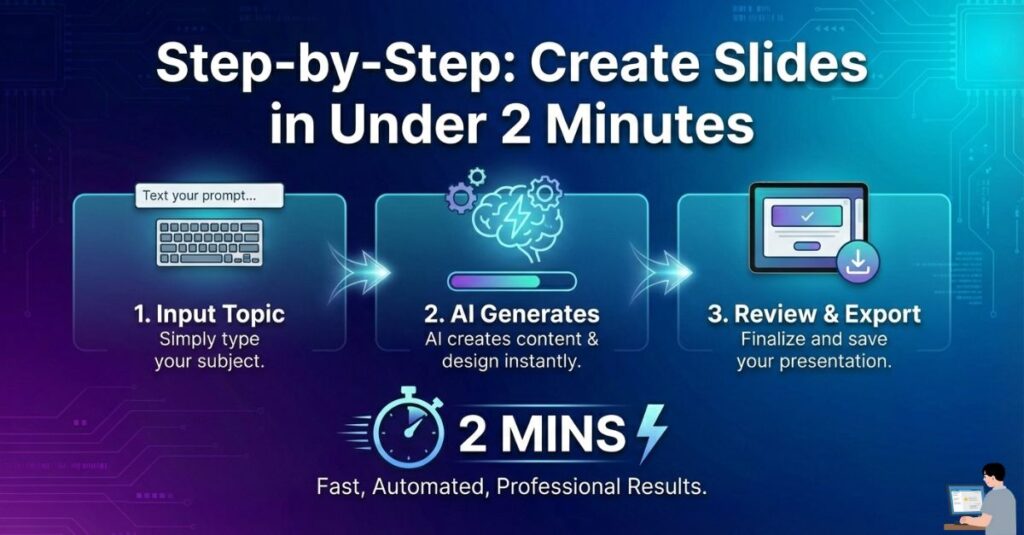
Step-by-Step: Create Slides in Under 2 Minutes
Here’s the exact workflow I used to build a 10-slide presentation from scratch.
Step 1: Sign Up and Click “Create New”
Sign up using your Google account. Once inside the dashboard, simply select “Generate”.
- Note: There is no setup installation. Just start.
Step 2: Enter Your Topic (One Line Is Enough)
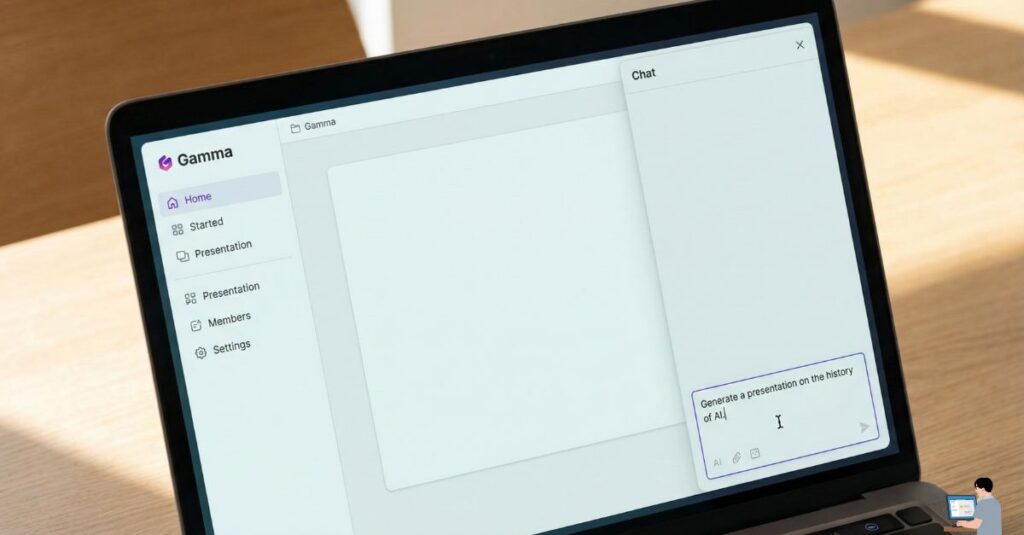
The tool is flexible. You can:
- Paste your own rough notes.
- Upload a document/PDF.
- Or simply type a single sentence.
The example I used:
“A presentation about the benefits of AI for small businesses”
Pro Tip: This feature is incredible if you need to create a presentation from a Word document using AI for free. You simply paste your text, and the AI breaks it down into slide-sized chunks.
Step 3: Review the AI-Generated Outline
Before it builds the final slides, the AI shows you a text outline. Do not skip this step.
- Remove sections you don’t like.
- Add missing bullet points.
- Reorder the flow.
Once you click Continue, the heavy lifting begins.
Step 4: Choose a Theme (No Template Scrolling)
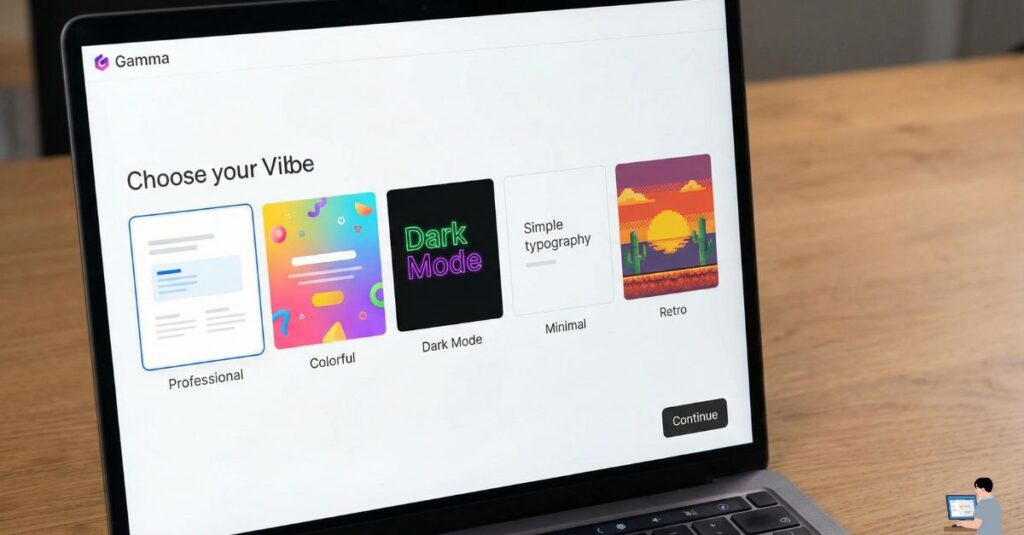
Instead of scrolling through 100 generic templates, Gamma asks you to choose a “vibe”:
- Professional
- Minimal
- Colorful
- Dark mode
I chose Professional for a corporate look.
Step 5: Watch the Slides Build Live
This is the “wow” moment. The AI writes headings, formats bullet points, creates diagrams, and adds relevant images in real-time.
⏱️ Total generation time: 1 minute 45 seconds.
Is the Result Actually Professional?
I expected something basic. Instead, I was genuinely impressed by three things:

1. Smart Layouts Not every slide was just a list of bullet points. The AI created comparison tables, image-text layouts, and structured timelines automatically.
2. Relevant Images The visuals actually matched the specific content I typed in—it didn’t just throw in random, unrelated stock photos.
3. Fully Editable The best part? It’s not a static image. You can replace images, rewrite text, and adjust spacing using a simple drag-and-drop editor similar to Canva.
Can You Download the Slides for Free?
Yes—with some limits.
- PDF Download: Free and clean.
- PPT (PowerPoint) Download: Available, though the free version may sometimes include a small “Made with Gamma” badge.
For most students and internal meetings, this qualifies as a high-quality professional slides with AI free download option.
Other Free AI Presentation Tools Worth Knowing
If Gamma isn’t your style, here are the top alternatives:
- Canva Magic Design: Best for visual-heavy slides, though sometimes slower for long decks.
- SlidesAI: Great if you want a Google Slides extension specifically.
- Tome AI: Excellent for storytelling and creative pitches.

Common Questions People Ask About AI Slides
What is the best free AI presentation maker? For speed and structured content, Gamma is currently the leader. For pure design flexibility, Canva is a close second.
Can AI replace PowerPoint completely? Not entirely. For high-stakes investor decks where every pixel matters, you still need a human designer. But for 80% of use cases (class projects, weekly reports, team updates), AI is more than capable.
Can I make a professional presentation with AI for free? Absolutely. The free tools available today handle the heavy lifting of design and formatting, leaving you to focus on the content.
Limitations You Should Know
No tool is perfect. Here are the honest downsides I found:
Complex Animations: It is not as advanced as PowerPoint’s animation tab.
Text Density: The AI sometimes puts too much text on one slide. You may need to trim it down.
Brand Customization: Detailed branding (exact hex codes and custom fonts) is harder on the free plan.
Should You Use AI to Make Slides?
Should You Use AI to Make Slides?
If you are a student, freelancer, or office worker who hates staring at a blank screen, this is a no-brainer.
AI won’t replace professional designers for million-dollar pitch decks—but for your everyday presentations, it is a massive productivity upgrade. Once you try it, you’ll never open PowerPoint the “old way” again.